
How-to: BIM library
All BIM data. One click. Complete planning security.
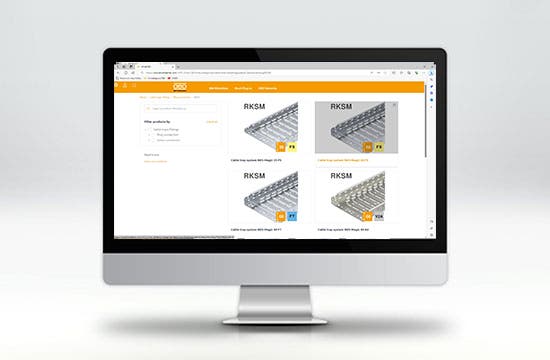
The BIM library – the fastest way to your BIM model
We recommend using the BIM@OBO library for the following applications:
- When there is a need for individual products, such as cable tray bends
- The model should be able to be used in different authoring systems and in Open BIM projects
- When planning an international project to ensure that the selected products are available locally
- It is not technically possible to install the plug-in (e.g. due to lacking administrator rights)
Good to know:
Complete system families can only be downloaded via the BIM@OBO plug-in for Autodesk Revit. You will find the here.
BIM library functions
- Search for item number, item name or system
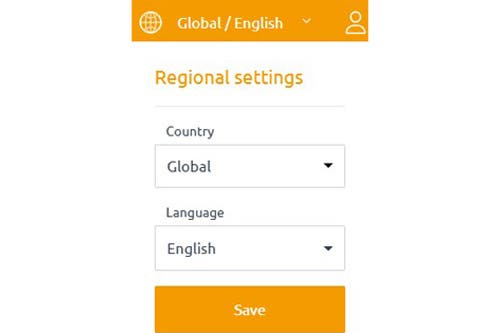
- Selection of region and language
- Option to filter by category
- Shopping basket or quick download of BIM models
- Revit families, IFC, STP, PDF, OBJ, DWG, FBX, SAT
- No administrator rights required – accessed directly through your web browser

Good to know:
English is available for every country, in addition to the local national language.
The product search
There are multiple ways to search for the products you’re looking for in the BIM library.
- Set the required regional product range and the language relevant to you
OBO’s national product ranges vary greatly in some cases. To ensure that the selected products are available when planning your project, it is therefore essential to select the correct region. If your country is not listed, please select the “Global” product range, which contains the entire OBO product portfolio. Please note: In this case, it must be checked locally whether the products are also available in your country.
2. The product search
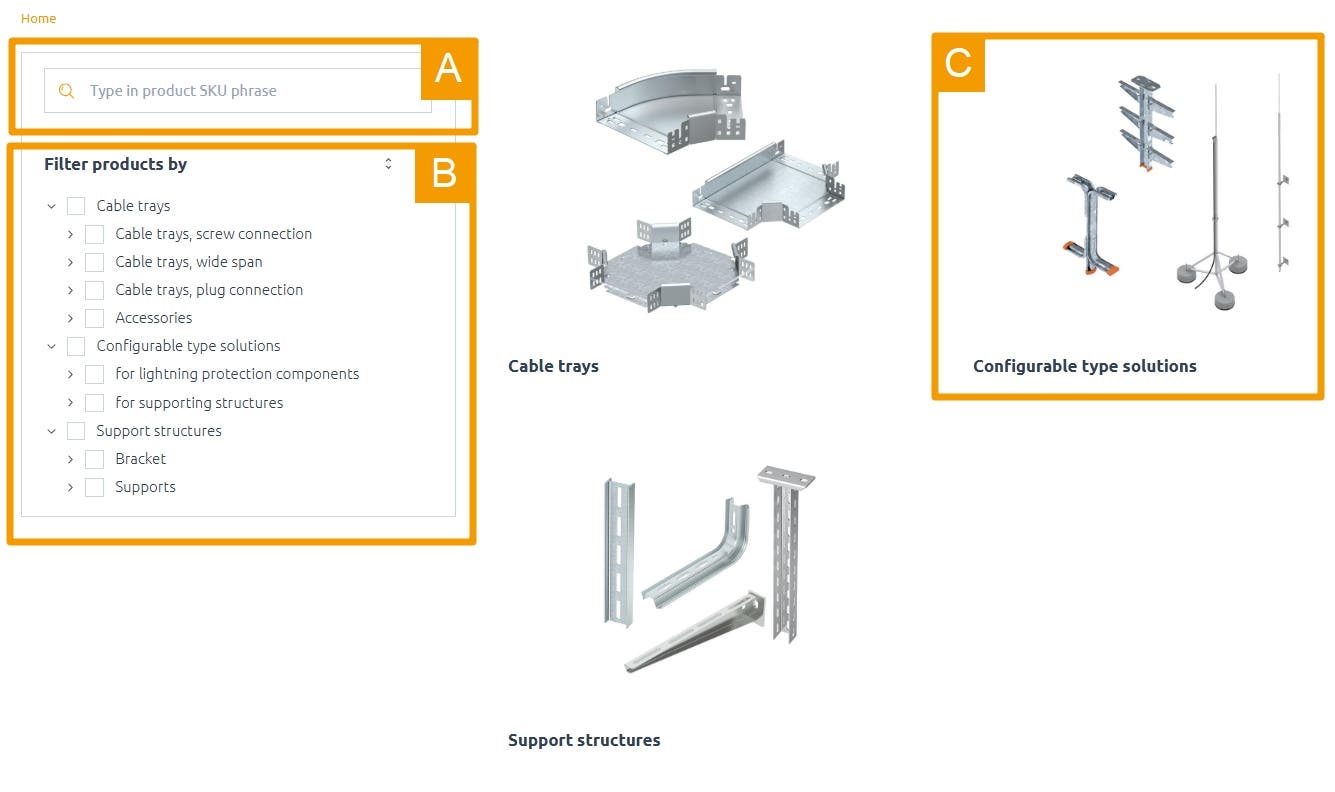
After selecting the country and the language, three different options are available for your product search:
| A | Search for item number or product name We recommend this option if you already know exactly what product you need |
|---|---|
| B | The search via the product filter gives you a quick overview of the different categories |
| C | The search via tiles/images provides visual support |
The product selection
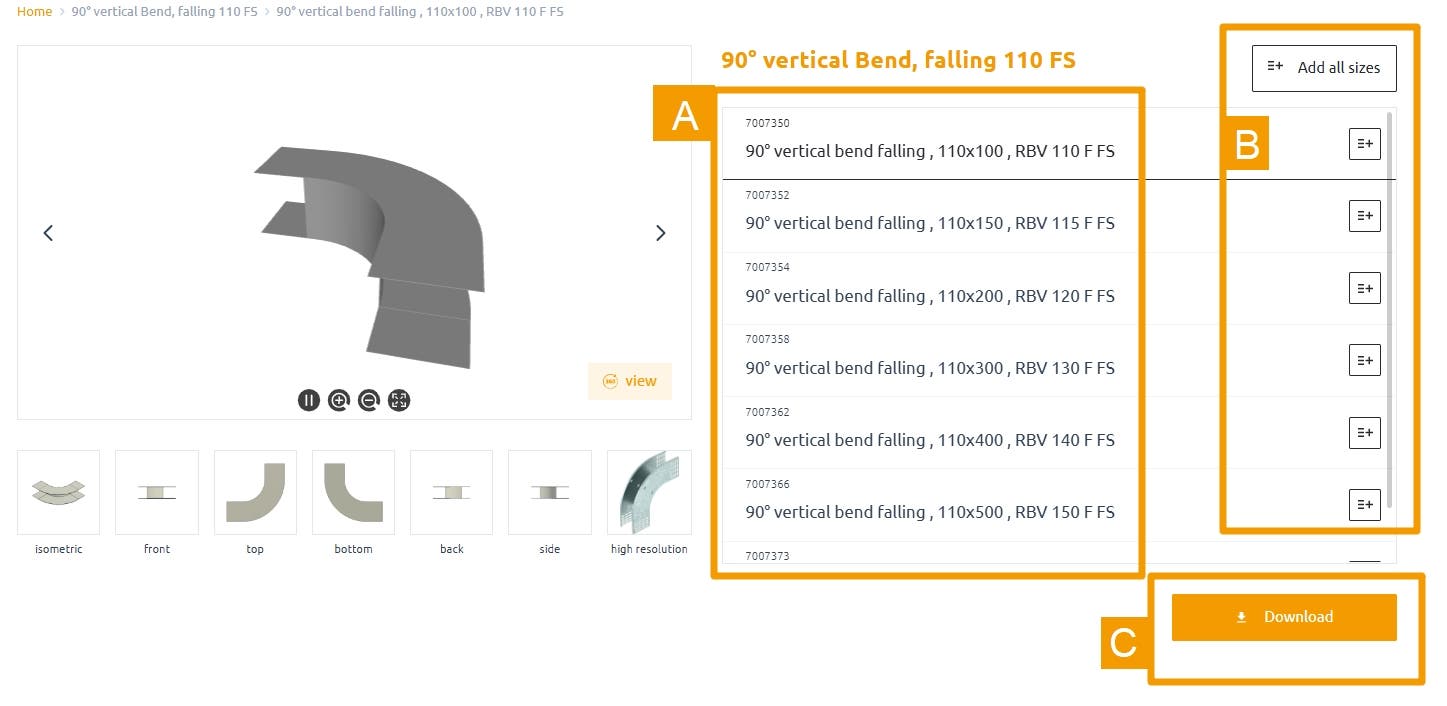
In this view, you get a detailed overview of the product family you selected. In most cases, it contains multiple items, which you can learn more about here. By selecting the item (A), you will find the different views for the item on the left, as well as the product data in the section below.
In the next step, you can choose between two options:
B. Select all items and place them in the shopping basket – this is relevant if you need more items
C. Link straight to the shopping basket
The shopping basket
You can reach the shopping basket either directly via the download button described above or by clicking on the shopping basket icon at the top right of the website.

Good to know:
To be able to open the shopping basket, you have to register with BIM@OBO once, free of charge. After that, you can use all the functions on the web and in the plug-in without any limitations.
In the shopping basket, you can now select the formats you need. If you select the Revit format, the entire family with all the corresponding items is provided. Otherwise, you can also select and download individual file formats, such as IFC or STP, for individual items.
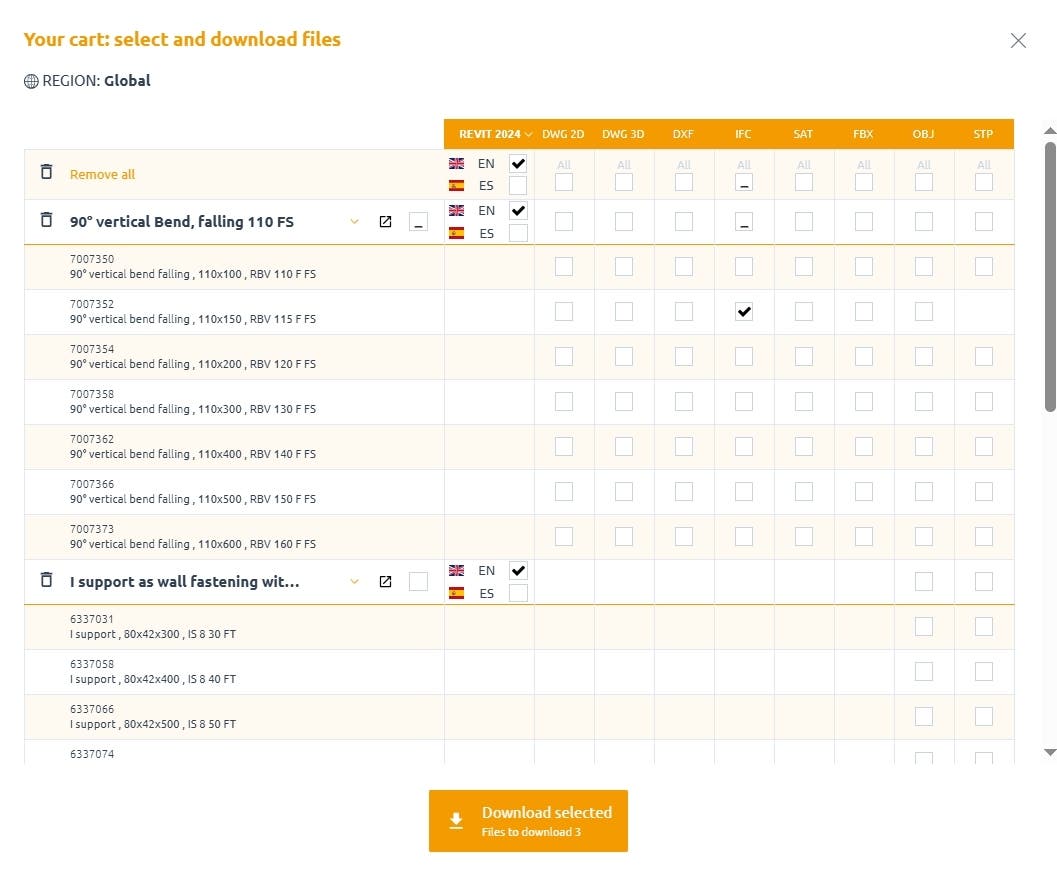
Language selection
Selection of the Revit product version
Format availability
Download
The selected files are stored as a *.zip file on your computer in your browser’s download folder.
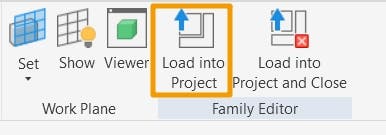
When you open the Revit file, the family automatically opens in the family editor in Revit. From here, you can place the file directly in your project.
Good to know:
The files downloaded in the BIM library cannot be used for routing in Revit. For this, we recommend the Revit plug-in.
You might also find this interesting

BIM@OBO
BIM@OBO allows planners, architects and installation engineers to create BIM-compliant planning for electrical installations – quickly, easily and in a sustainable manner.

Get started with the OBO BIM plug-in
Install the free plug-in, connect your Revit to OBO and drag BIM system families directly into the model – with no detours and ready for immediate use.
BIM@OBO Test Lab
The BIM Test Lab contains brand-new BIM models for Autodesk Revit which can be downloaded and tested free of charge. Try out new models and system families developed by our BIM modellers here.

BIM@OBO news – all updates at a glance
Stay up to date on the latest BIM@OBO developments. Learn all about new functions, product families and optimisations for your digital planning process. Discover more.