
How-to: Revit plug-in
Install the plug-in. Integrate BIM data. Speed up planning.
The Revit plug-in for perfect system planning
We recommend using the BIM@OBO Revit plug-in for the following applications:
- Complete system planning of OBO cable trays or cable ladders in Autodesk Revit
- Planning security – from draft through to planning the factory and mounting
- Issue of bills of materials for invitations to tender or material orders
- Planning of an international project: Ensure that the selected systems are also available locally
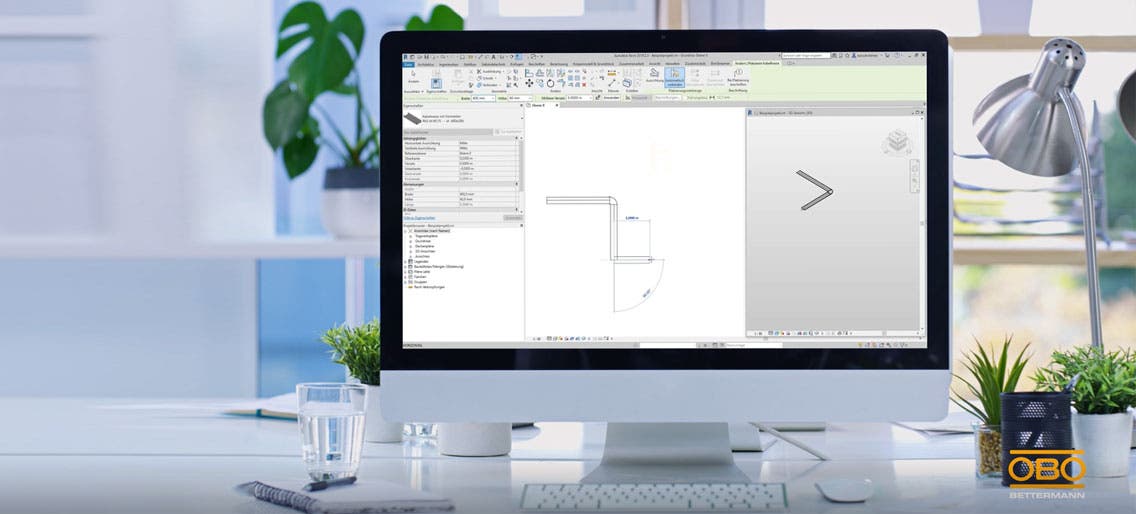
Good to know:
Currently, the Revit plug-in can be used for Revit versions 2023–2026. Cable trays and cable ladders are currently available for system planning. New systems are added over time as part of continuous updates.
Autodesk Revit plug-in functions
- Routing-capable systems (consisting of fittings and accessories)
- Integrated BIM library for placing individual products
- Automated creation and export of a parts list of the planned system components in Excel or as a PDF
- Reliable data thanks to regular updates
- Selection of region and language
- Automatic updates – no new installations required

Use in Autodesk Revit
In Revit, you open the plug-in by clicking the new “OBO” item in the menu bar.

BIM library
System generator
Parts list tool
Settings
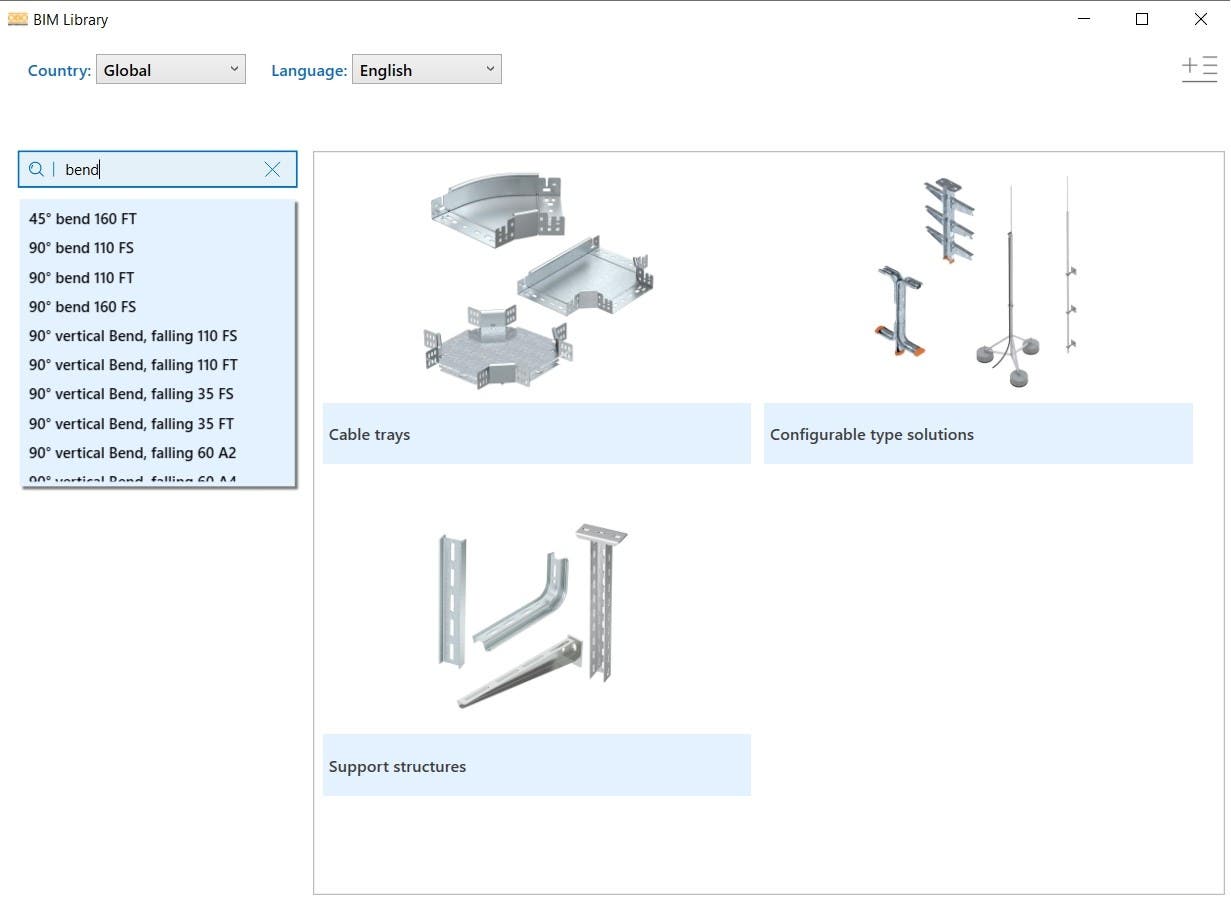
The BIM library
The BIM library supports you in loading individual product families from OBO straight to Revit. It is especially helpful if you need families that cannot be loaded to Revit via the system generator. This concerns mainly:
- Individual fittings that do not exist in the selected system (e.g. due to the selected national product range)
- Fittings that are not (yet) available in the system generator (e.g. mounting systems)
- Typicals: individually configurable product components such as ceiling suspensions with freely selectable brackets
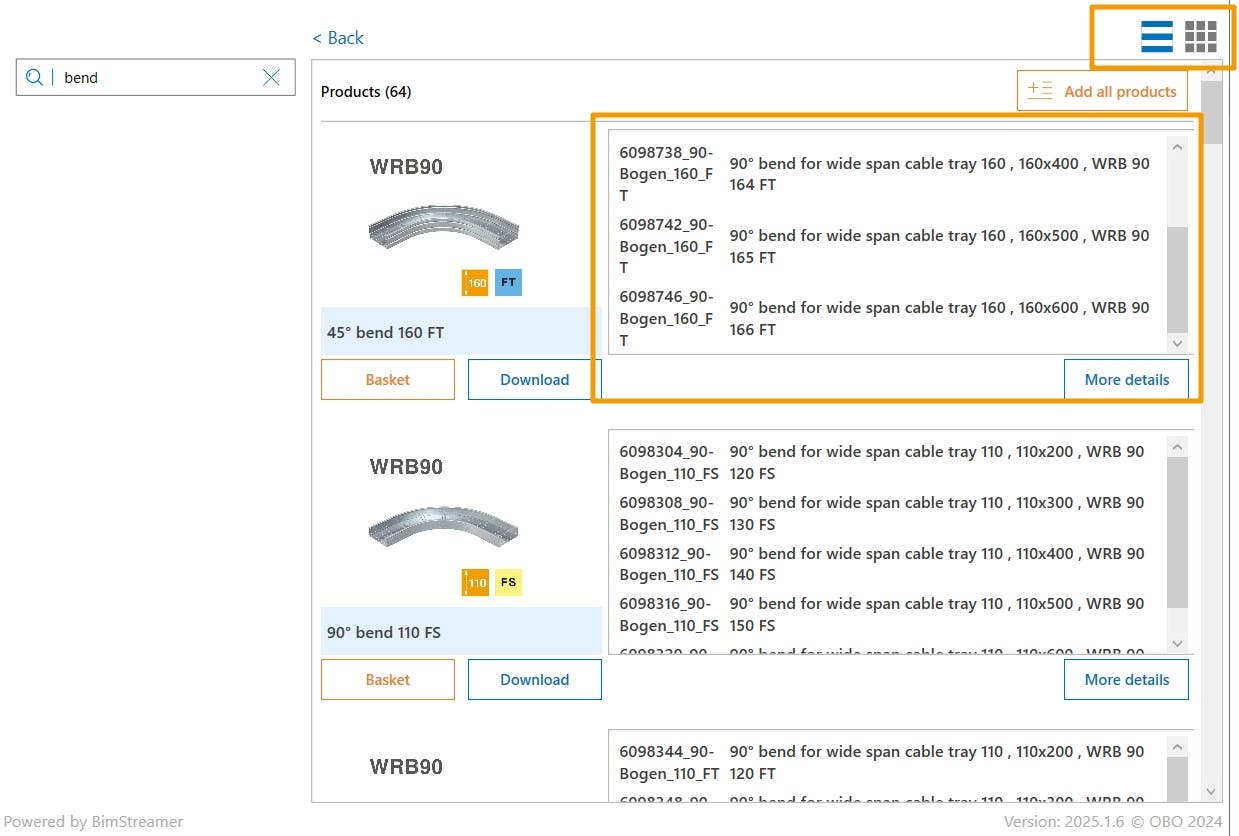
Once you have found your product family, you can either place it in your shopping basket or load it straight to Revit in the product view. Select the settings button at the top-right corner to change the view and see all articles from the respective family.
System generator
The system generator is the main component of the OBO plug-in. You can currently download complete systems for the following categories (additional systems will follow over time):
- Cable trays
- Wide span cable sections
- Cable ladders
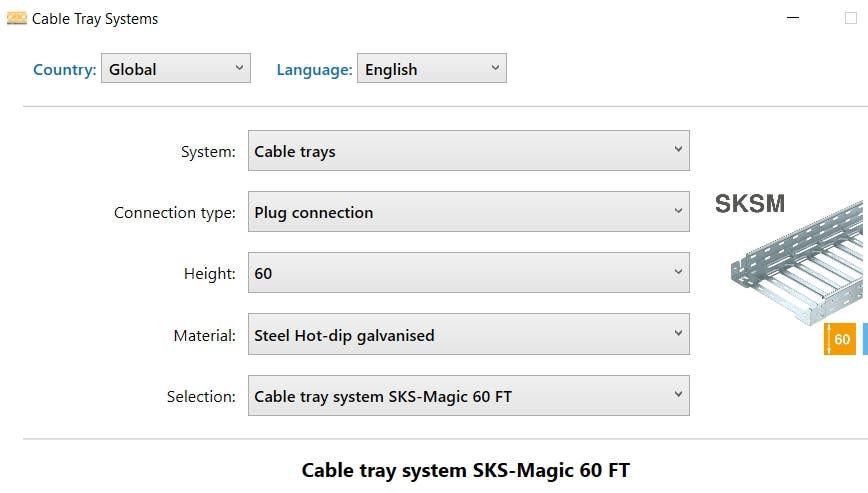
You start by selecting the region and language relevant to you.
Next, you select the system relevant to you, and you can have it created it in Revit.
Good to know:
The creation process generally takes a while, as the Revit families are put together in the background. Once this process is completed, you are notified in a small info box.
You will find the downloaded system in Revit under the category of electrical systems and then under cable trays. Fittings that can be placed manually are also provided. You will find them in the area for cable tray fittings.
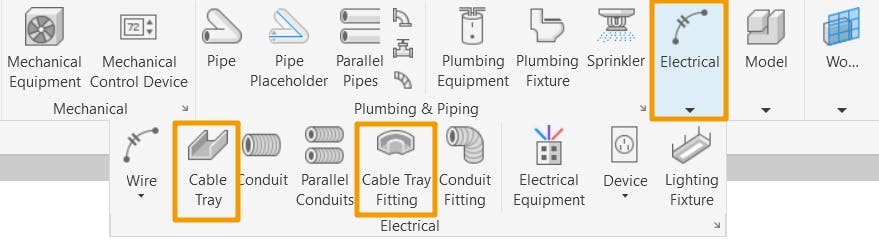
The system itself always consists of different fittings and accessories. With the routing function built into Revit, these fittings are then placed automatically as needed during modelling and then listed in the parts list. One special feature is the fittings that can be positioned manually. These complement and complete the OBO tray systems and other fittings.
You will find more information on the automatically and manually placed fittings in the videos linked here:
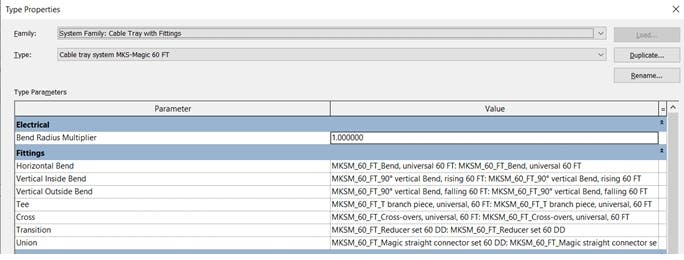
Parts list tool
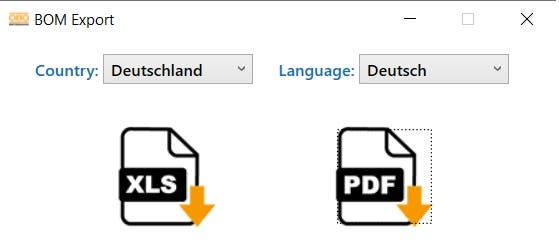
The parts list (or bill of materials – BOM) tool enables you to analyse and export your planned OBO products. You receive an analysis of the standard cable tray elements used in the routing (CableTrays1) and the fittings used (Multicategory 1).
These overviews can then be exported as either Excel or PDF files.


You might also find this interesting

BIM@OBO
BIM@OBO allows planners, architects and installation engineers to create BIM-compliant planning for electrical installations – quickly, easily and in a sustainable manner.

BIM@OBO library – efficient planning & downloads
In this guide, you will learn how to select and download the right BIM files and import them directly into the project using the OBO web version or the Revit plug-in.

BIM@OBO news – all updates at a glance
Stay up to date on the latest BIM@OBO developments. Learn all about new functions, product families and optimisations for your digital planning process. Discover more.
BIM@OBO Test Lab
The BIM Test Lab contains brand-new BIM models for Autodesk Revit which can be downloaded and tested free of charge. Try out new models and system families developed by our BIM modellers here.